home onepage b
- #3c3c3c
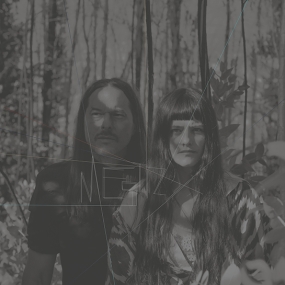
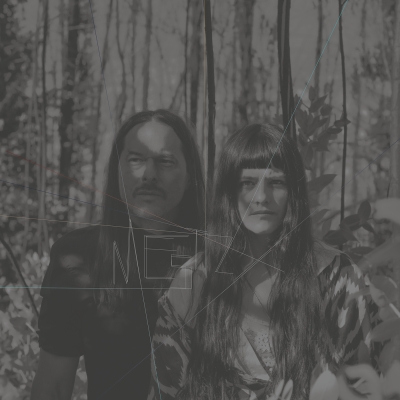 Pre-Order Ibelisse Guardia Ferragutti and Frank Rosaly's MESTIZX
MESTIZX is Bolivian-born singer and multimedia performer Ibelisse Guardia Ferragutti and Chicago expat jazz drummer Frank Rosaly's debut full-length album as co-composers, arrangers, and musicians. Partners in both marriage and art, the Amsterdam-based duo dove deep into the sounds of their respective ancestral roots in Bolivia, Brazil, and Puerto Rico to create this deeply personal meditation on decolonization and the defiant power of ritual and protest.
- #527094
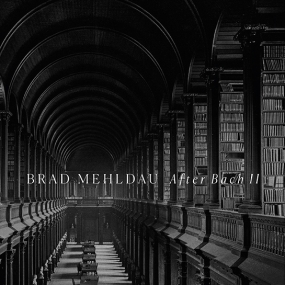
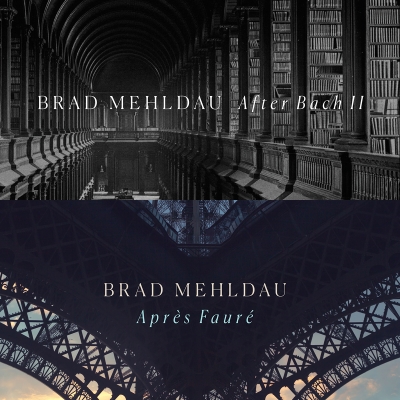 Pre-Order Brad Mehldau's After Bach II and Après Fauré
Brad Mehldau’s After Bach II and Après Fauré are due May 10. The Bach album comprises four preludes and one fugue from the Well-Tempered Clavier, as well as the Allemande from the fourth Partita, interspersed with seven compositions or improvisations by Mehldau inspired by the complementary works of Bach—including Mehldau’s Variations on Bach’s Goldberg Theme. On Après Fauré, Mehldau performs four nocturnes, from a 37-year span of Gabriel Fauré’s career, as well as a reduction of an excerpt from the Adagio movement of his Piano Quartet in G Minor. Here Mehldau’s four compositions that Fauré inspired are presented in a group, bookended by two sections featuring the French composer’s works.
- #3a3b36
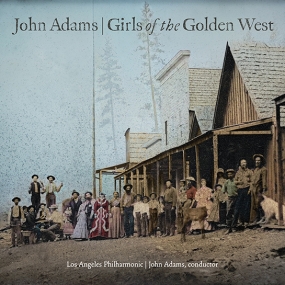
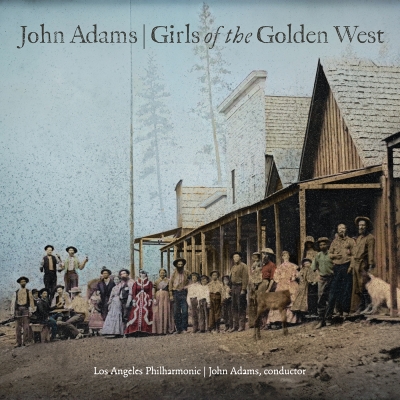 John Adams' Girls of the Golden West Out Now
This first recording of John Adams’ 2017 opera, Girls of the Golden West, is his eighth music theater work to be released by Nonesuch. It tells the story of the California Gold Rush not through familiar time-worn myth, but in the words and deeds of real people. Longtime Adams collaborator Peter Sellars drew from original sources from the era—letters, journals, newspaper articles, and familiar song lyrics—to create the libretto. The composer leads the LA Phil in this recording made in Disney Hall, with the LA Master Chorale led by Grant Gershon and a cast featuring Davóne Tines, Julia Bullock, and others.
- #000000
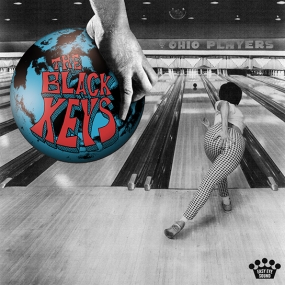
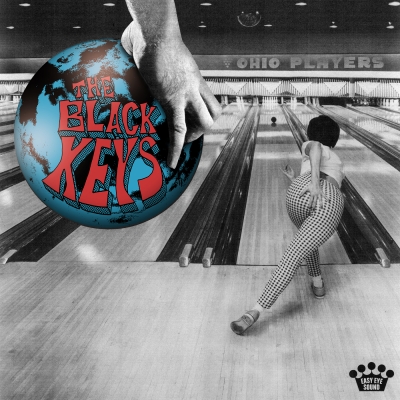 The Black Keys' Ohio Players Out Now
The Black Keys' twelfth studio album, Ohio Players—a title inspired by the legendary Dayton, Ohio, funk band of the same name—features several collaborations between band mates Dan Auerbach and Patrick Carney with various friends and colleagues, like Dan “The Automator” Nakamura, Beck, Noel Gallagher, Greg Kurstin, and others. “We had this epiphany: ‘We can call our friends to help us make music,’" Carney says. Auerbach adds, “No matter who we work with, it never feels like we're sacrificing who we are. It only feels like it adds some special flavor ... But when it came time to finish the album, it was just Pat and me.”
- #2c2827
 Michael Wilson / 25 Years: A Nonesuch Collection
In celebration of Nonesuch Records' 60th anniversary, the label has partnered with photographer Michael Wilson—who has exquisitely captured dozens of Nonesuch artists over the past quarter-century—to produce Michael Wilson / 25 Years: A Nonesuch Collection, an extremely limited quantity of 100 box sets containing newly created prints from his Nonesuch archive, due September 13. Designed by the Grammy-winning team at SMOG Design, each box will comprise twenty 12" x 12" prints, numbered and signed by the photographer.
Journal
- Thursday, May 2, 2024
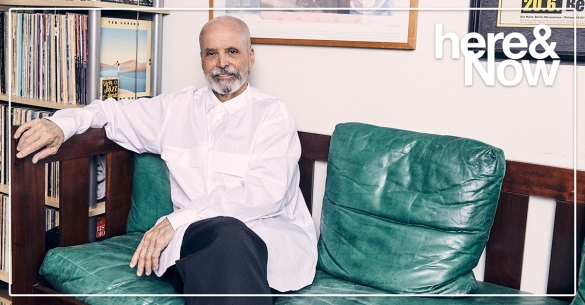
"One of my favorite music labels has a momentous birthday: Nonesuch Records is turning 60 this year," says Deepa Fernandes, co-host of NPR's Here & Now, who spoke with Nonesuch President David Bither to mark the occasion. "Nonesuch has likely influenced your musical diet even if you didn't know it." "It's very hard to say what is a Nonesuch record," Bither says. "It's not a particular genre, but maybe it represents a particular kind of ambition and originality. There's a passionate audience for the music we've tried to champion." You can hear their conversation and several musical selections from over the years here.
Wednesday, May 1, 2024
Rhiannon Giddens and her band were on Jimmy Kimmel Live! last night to perform "You Louisiana Man," from her new album, You're the One. You can watch it here. The second season of her PBS show My Music with Rhiannon Giddens premieres today with pipa virtuoso Wu Man as her guest. You can watch that here as well.
Tuesday, April 30, 2024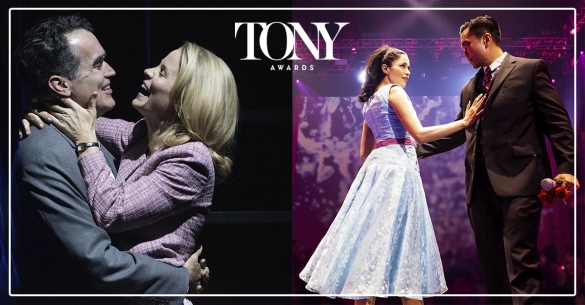
Congratulations to Days of Wine and Roses and Here Lies Love on their Tony Awards nominations. Days of Wine and Roses is up for Best Original Score for Adam Guettel, Best Leading Actress in a Musical for Kelli O'Hara, and Best Leading Actor in a Musical for Brian d'Arcy James, as well as Drama Desk, Outer Critics Circle, and a Drama League awards. Here Lies Love is up for Tonys for Best Original Score for David Byrne and Fatboy Slim, Best Sound Design of a Musical for M.L. Dogg and Cody Spencer, Best Scenic Design of a Musical for David Korins, and Best Choreography for Annie-B Parson, as well as Outer Critics Circle and Drama League awards. And kudos to Timo Andres, who is up for both Tony and Drama Desk awards for Best Orchestrations for Illinoise.
Artist Spotlight
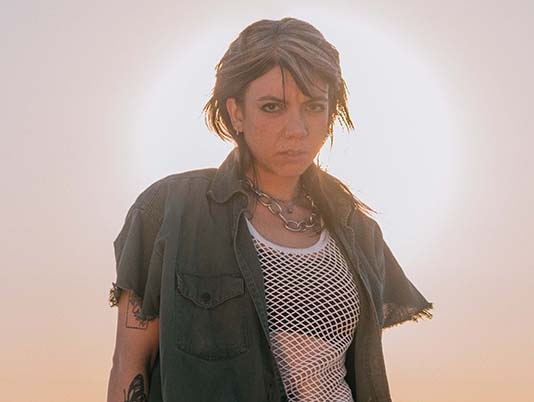
Hurray for the Riff Raff (aka Alynda Segarra) created The Past Is Still Alive during a period of personal grief, when they found inspiration in radical poetry, railroad culture, outsider art, the work of writer Eileen Myles, and activist groups like ACT UP and Gran Fury. Segarra uses their lyrics as a way to immortalize and say goodbye to those they have loved and lost, and to honor both the heartbroken and the hopeful parts of themselves. Though made in North Carolina by the Bronx-…

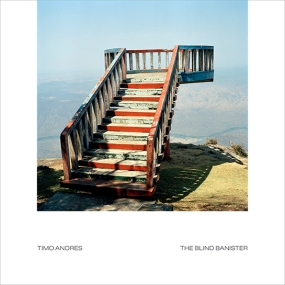
Composer/pianist Timo Andres, who has been praised for his “acute ear” by the New York Times’s Anthony Tommasini and “stubborn nose” by the New Yorker’s Alex Ross, made his Nonesuch debut with the 2010 release of his album Shy and Mighty, followed by Home Stretch in 2013. He performs works by several Nonesuch artists, including himself, on the 2020 album I Still Play.

Brad Mehldau’s After Bach II and Après Fauré are due May 10 on Nonesuch Records. The Bach album comprises four preludes and one fugue from the Well-Tempered Clavier, as well as the Allemande from the fourth Partita, interspersed with seven compositions or improvisations by Mehldau inspired by the complementary works of Bach—including Mehldau’s Variations on Bach’s Goldberg Theme. On Après Fauré, Mehldau performs four nocturnes, from a thirty-seven…
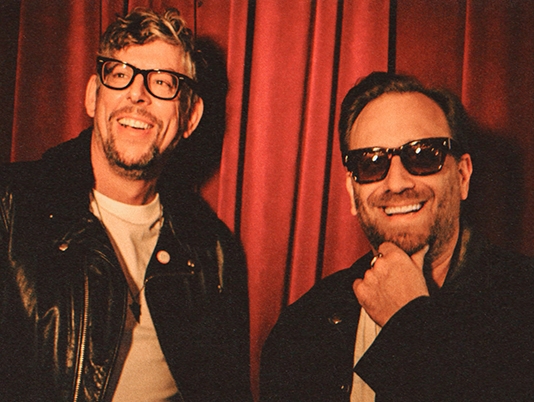
The Black Keys' twelfth studio album, Ohio Players—a title inspired by the legendary Dayton, Ohio, funk band of the same name—features several collaborations between band mates Dan Auerbach and Patrick Carney with various friends and colleagues, like Dan “The Automator” Nakamura, Beck, Noel Gallagher, Greg Kurstin, and others. “We had this epiphany: ‘We can call our friends to help us make music,’" Carney says. Auerbach adds, “No matter who we work with, it never feels like we're…

This first recording of John Adams’ 2017 opera, Girls of the Golden West, is his eighth music theater work to be released by Nonesuch. It tells the story of the California Gold Rush not through familiar time-worn myth, but in the words and deeds of real people. Longtime Adams collaborator Peter Sellars drew from original sources from the era—letters, journals, newspaper articles, and familiar song lyrics—to create the libretto. The composer leads the LA Phil in this recording made…
Store
 ,LabelLP+MP3Price21.00UPC075597899580LabelCD+MP3Price13.00UPC075597899597
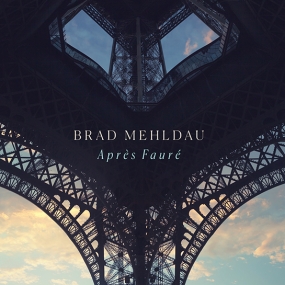 ,LabelCD+MP3Price13.00UPC075597900897,Label96/24 HD FLACUPC075597900873LabelMP3UPC075597900866
 ,LabelCD+MP3Price13.00UPC075597900835,Label96/24 HD FLACUPC075597900798LabelMP3UPC075597900781
 ,LabelRed Moon LP+MP3Price25.00UPC075597900125,LabelLP+MP3Price21.00UPC075597900118LabelCD+MP3Price13.00UPC075597900132
 ,Label2CD+MP3Price21.00UPC075597900521,Label96/24 HD FLACPrice17.00UPC075597900507LabelMP3Price16.00UPC075597900491
 ,LabelLP+MP3Price27.98UPC075597900194,LabelCD+MP3Price14.98UPC075597900231,Label96/24 HD FLACPrice10.00UPC075597900170LabelMP3Price9.00UPC075597900156
 ,LabelCD+MP3Price13.00UPC075597899948,Label96/24 HD FLACPrice10.00UPC075597899924LabelMP3Price9.00UPC075597899900
 ,LabelLP+MP3Price21.00UPC075597901498,LabelCD+MP3Price13.00UPC075597901405,Label48/24 HD FLACPrice10.00UPC075597901511LabelMP3Price9.00UPC075597901528
Tour
903416 899466
 895856
 899226